



What You'll Need
FAQ for Netflix Video Downloader
Q1: How to Register Netflix Video Downloader?
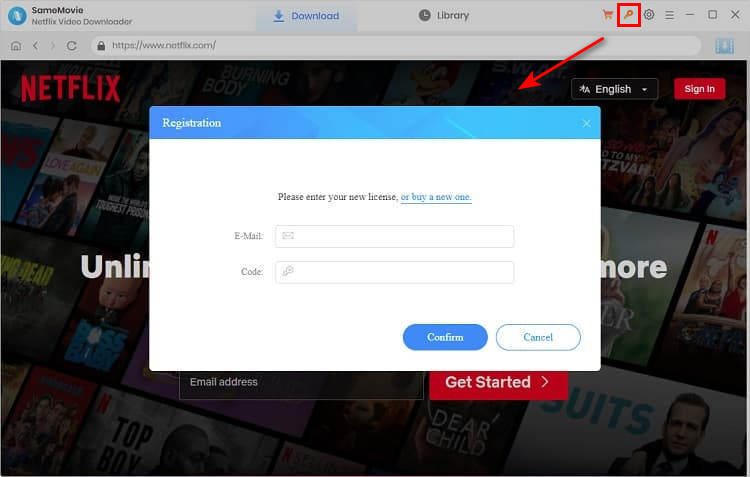
- Click the Key icon or the Menu icon (located in the upper right corner).
- Choose "Register", and a registration dialog will pop up.
- Copy and paste (or drag and drop) the registration email and license code.
- Tap "Confirm" to finish the registration.
If you do not receive the license key within few minutes of completing your order, please check your Spam or Promotion Email folder in case it was misclassified. Sometimes delays may occur due to internet or system glitches, email typos, etc. In this case, please contact us for assistance.
Q2: How can I fix an "Invalid Code" error?
If you receive an "Invalid Code" message, please try the following:
- Please make sure that the installed program matches the product and version you purchased. If you are using the wrong version or platform, the registration code may not work.
- Please check that the registration code exactly matches the code in your purchase confirmation email. Make sure there are no extra spaces or incorrect characters.
- One registration code can only be used on one device at a time. If the code has already been activated on another device, please log out of or deactivate the previous device before trying to activate it on your current device.
- If the issue persists, please contact our customer support team via [email protected] for further assistance.
Q3: What Kind of Video Does SameMovie Support Downloading?
SameMovie Netflix Video Downloader supports downloading existing videos that are playable on the official website.
Q4: What Should I Do If I Failed to Upgrade the Program?
If you can't update the program, please download the program via the provided links.
- Click here if your computer OS is Windows (Windows 10, 11).
- Click here if your computer OS is Mac (macOS 11 or higher).
Q5: What Should I Do If I Ordered the Program Twice?
Please contact our support team with the order IDs. We will refund you as soon as possible.
Q6: Can I Pay the Difference to Upgrade My License?
Paying the price difference for exchanging with another product is not supported. If you have multiple subscriptions or want to upgrade to higher tier, feel free to get in touch with us, and we will offer a discount based on the circumstances.
Q7: Is There a Discount for Purchasing Multiple Products?
Yes. Before purchasing multiple products, kindly reach out to us for details. If you've subscribed to multiple streaming services, a 21-in-1 product is recommended, as it enables you to download videos from all websites with a single app.
Q8: How to Get Videos at HD Quality?
1. SameMovie provides a free trial version, allowing you to download the first 5 mins of each video in HD quality. You can also get a free MONTH / YEAR license by reviewing the program. Simply click Win Free License for details. To get the full video, please purchase a license.
2. Please make sure Netflix plays video in HD quality. First, you need to adjust the Netflix playback setting to High: sign into Netflix.com, and select your profile. Under My Profile > Playback Settings > Data Usage > High.
If you have done the above setting, but the downloaded video's quality is still 480P, please follow these steps to check the original video's quality: Open the Netflix web player on Chrome browser, and play the video. Click "Ctrl" + "Alt" + "Shift" + "Q" on the keyboard at the same time, and then some details of the video will pop up, where you can check the video's resolution.
3. What to do if you are limited to downloading 540p videos through the program, but able to watch 1080p videos on the official website? As a result of restrictions imposed by Netflix, certain videos can only be downloaded in low resolutions. At the moment, there is no feasible solution, but our ongoing efforts are dedicated to addressing this issue.
4. Netflix provides merely 480P quality for videos from Disney and Marvel on Chrome Web player. So currently, SameMovie does not support downloading those videos in HD quality.
Q9: What's the Difference Between External, Internal or Hardcode Subtitles?
SameMovie offers three subtitle modes, you can see them on the General settings window. Here are the differences.
- External subtitles: It enables you to save subtitles as separate files, such as .srt or .vtt files.
- Internal subtitles: It will make the subtitles embedded within the output video. You can switch languages while playing the video on some players like VLC Media player.
- Hardcode subtitles: This mode allows the subtitles to burn onto your video. Please be aware that you can save subtitles in only one language at a time.
Q10: How to Speed Up the Download Process?
SameMovie enhances performance with Intel/NVIDIA/AMD graphics card acceleration for a smoother program and faster downloads. To maximize acceleration, ensure your computer has the latest graphics card drivers. Follow these steps:
Right-click the Windows Start menu, select "Device Manager", locate "Display adapters", and choose "Update driver" for your graphics card.
2. In case driver upgrades encounter issues, you can also install the latest graphics driver from your graphics card manufacturer's website: Intel / NVIDIA / AMD (choose the exact one according to your computer). After upgrading your graphics driver, don't forget to reboot your computer to activate it.
Q11: Solution to other error codes or what if the problem persists?
If you encounter error codes not listed above or if the issue persists despite following the provided solutions, please share the following information with our support team at [email protected] for further analysis:
- Your computer OS and the region of your account.
- A detailed description of the issue, including what happened, what troubleshooting steps you have already tried, and the results.
- Screenshots or a video showing the issue, if available.
- The URL of the video you were trying to download or process.
- Log files, which you can find by clicking the Menu icon in the upper right corner > Open Log File.
- Login cache files. Please send the relevant files located in the same folder as the log files. As these files may be large, we recommend compressing them into a ZIP file and sharing them through a file transfer service. You can use Buzzheavier to upload and share the ZIP file with us.


Haven't found the answer? We can help.
Contact UsContact us and we'll get back to you as soon as possible.
